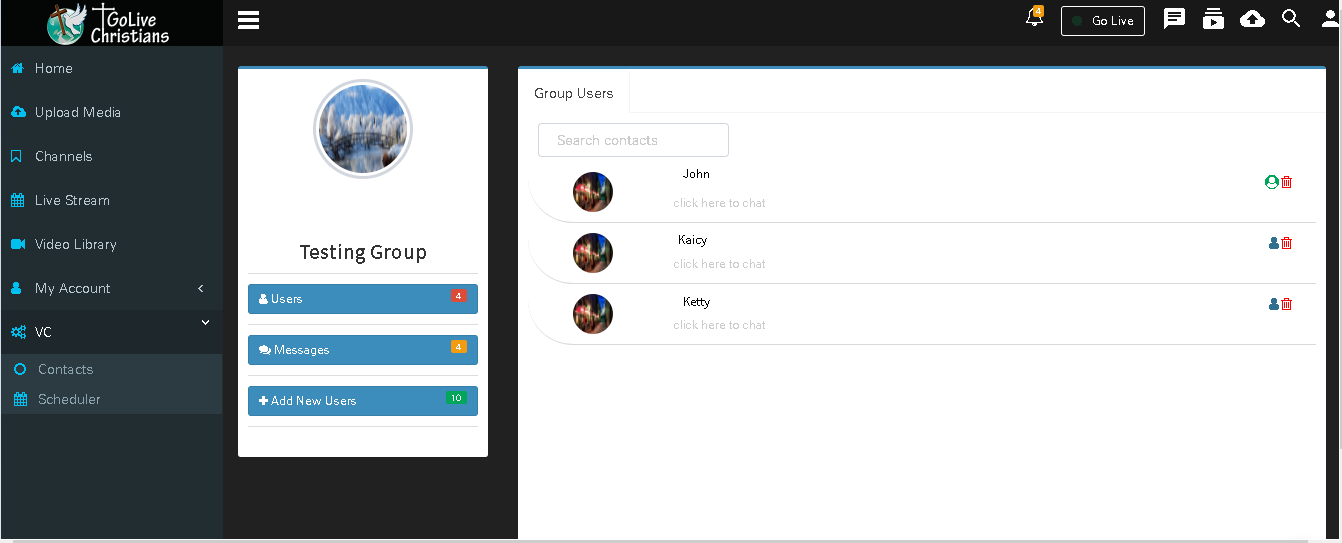
Video Call
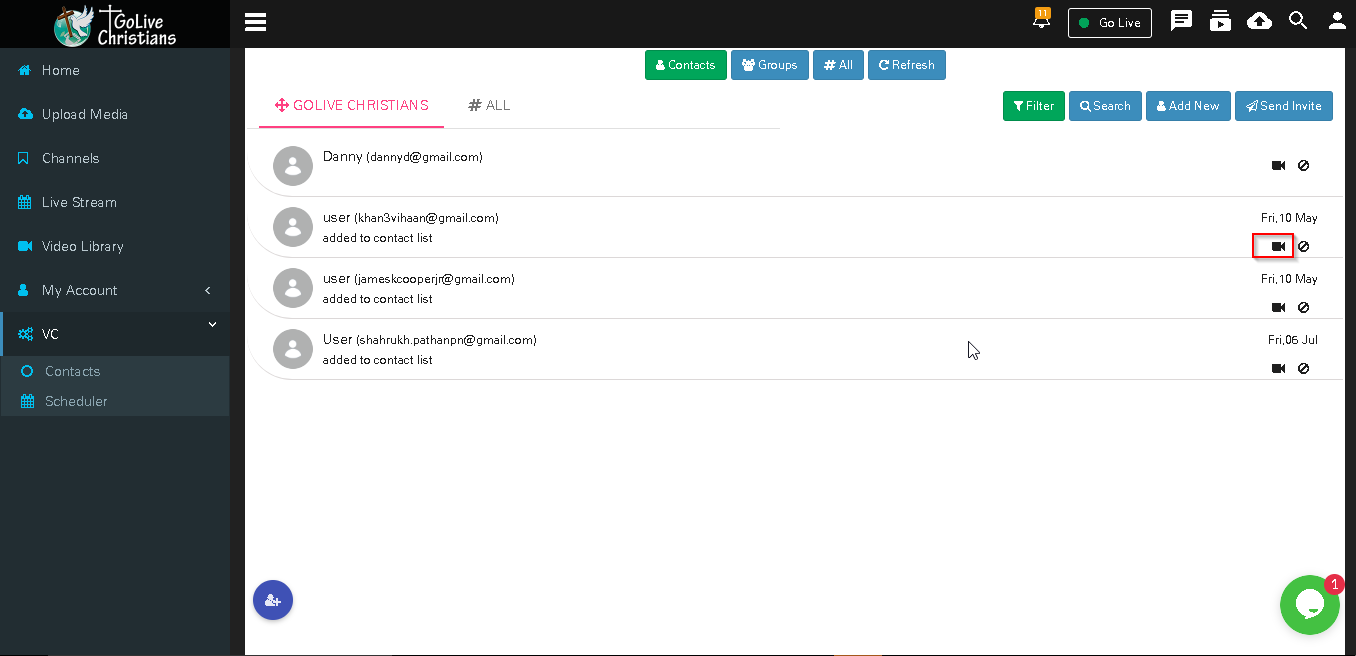
One to One Call
Click on ‘Video Camera’ icon in front of with the contact, a direct Video Call is established between the users.

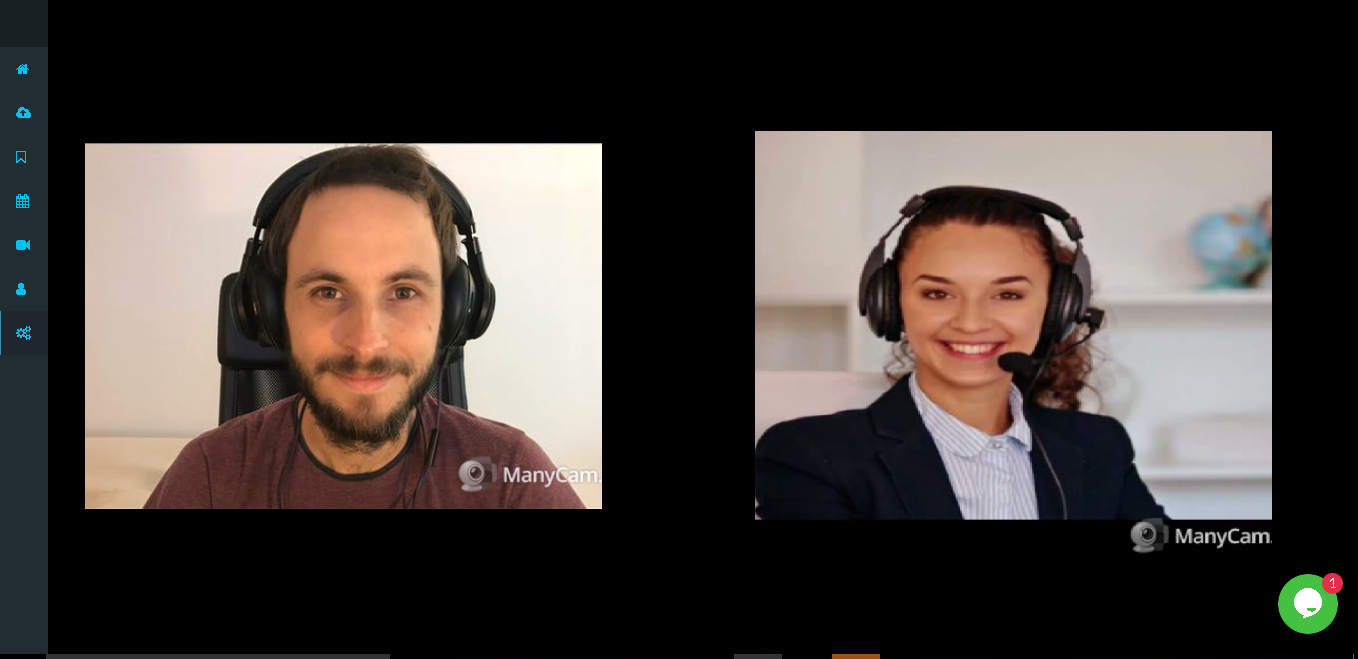
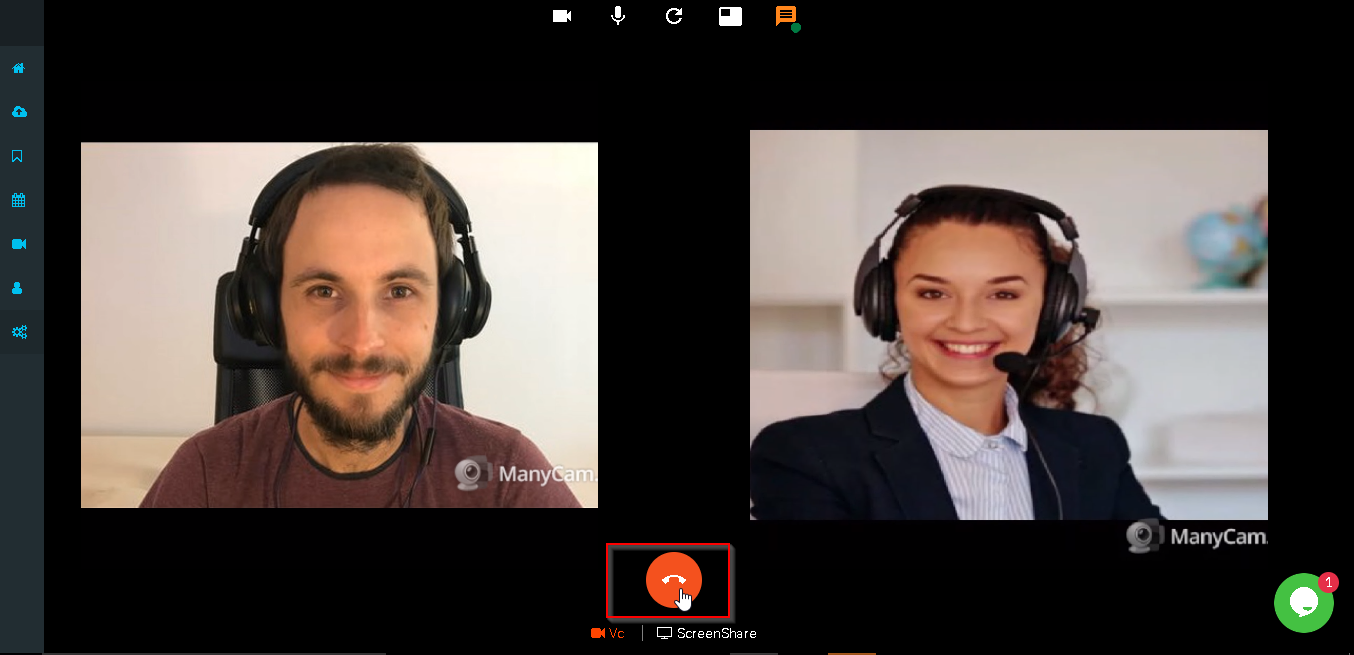
When both user received call display both users camera feed
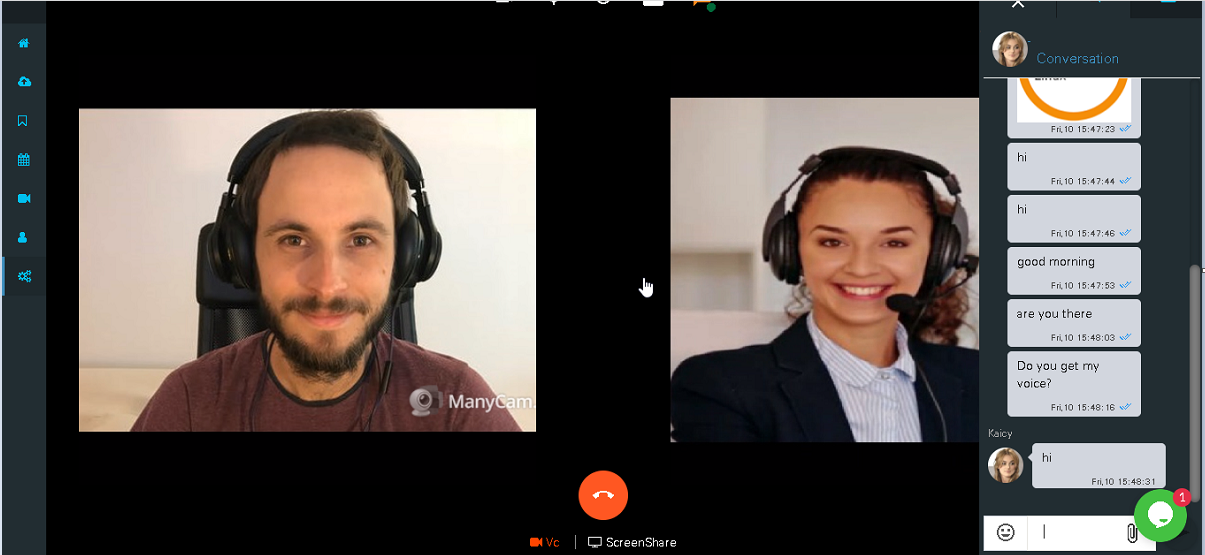
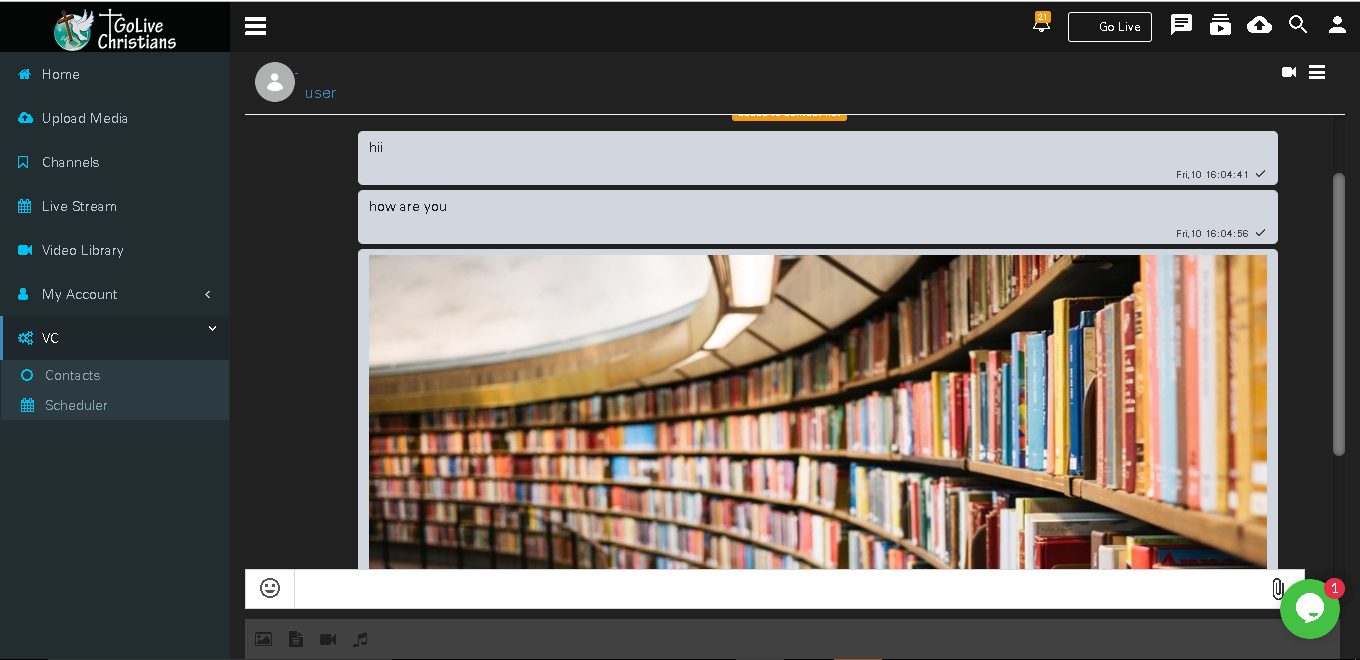
User A can Chat with user B and send Attachments in Chat at the time of call
Screen Share: Both users can share each other screen via screenshare only prerequisite is screenshare extension should be installed.
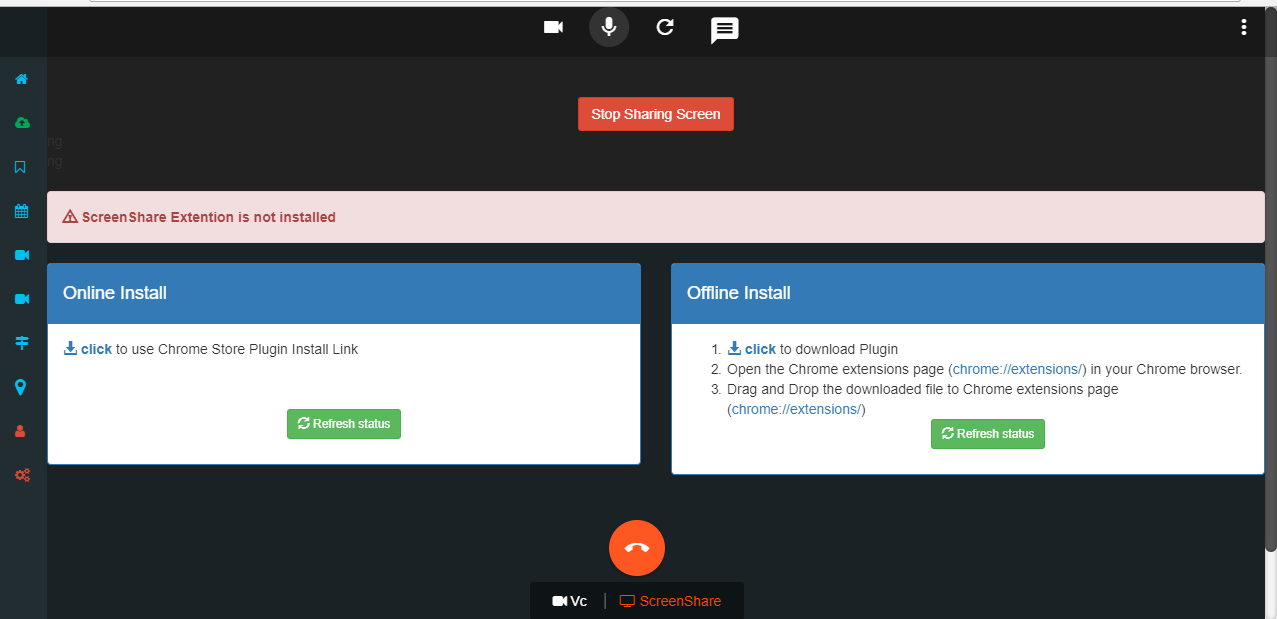
After install Screen-Share Extension user can start Screen-Share by click on Share button
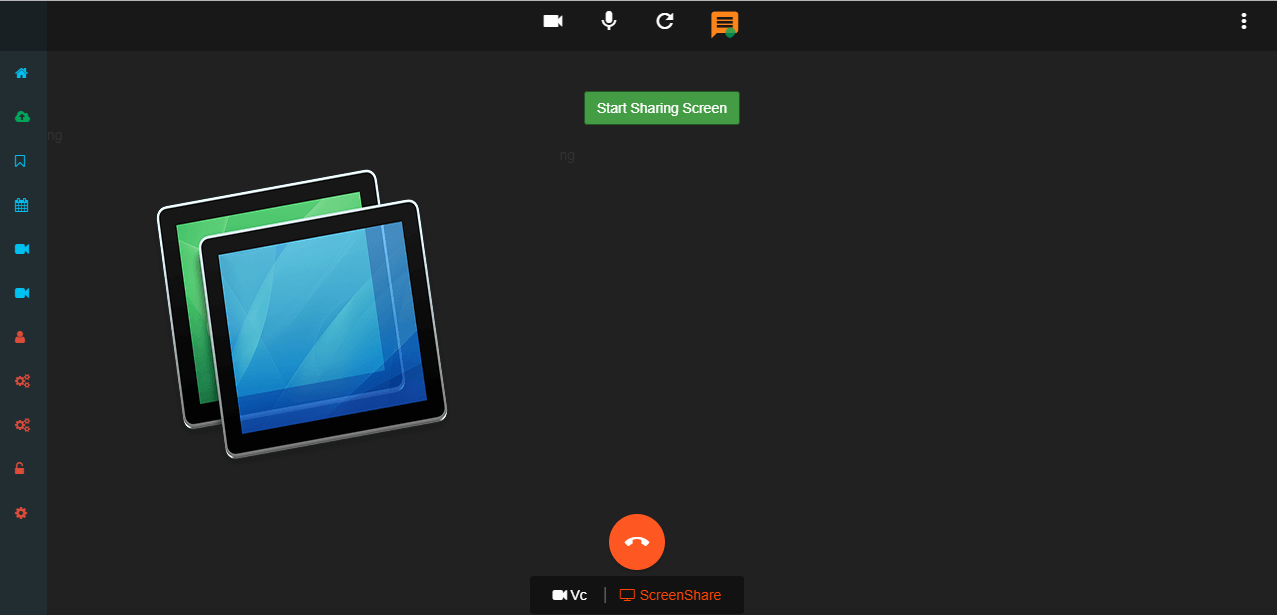
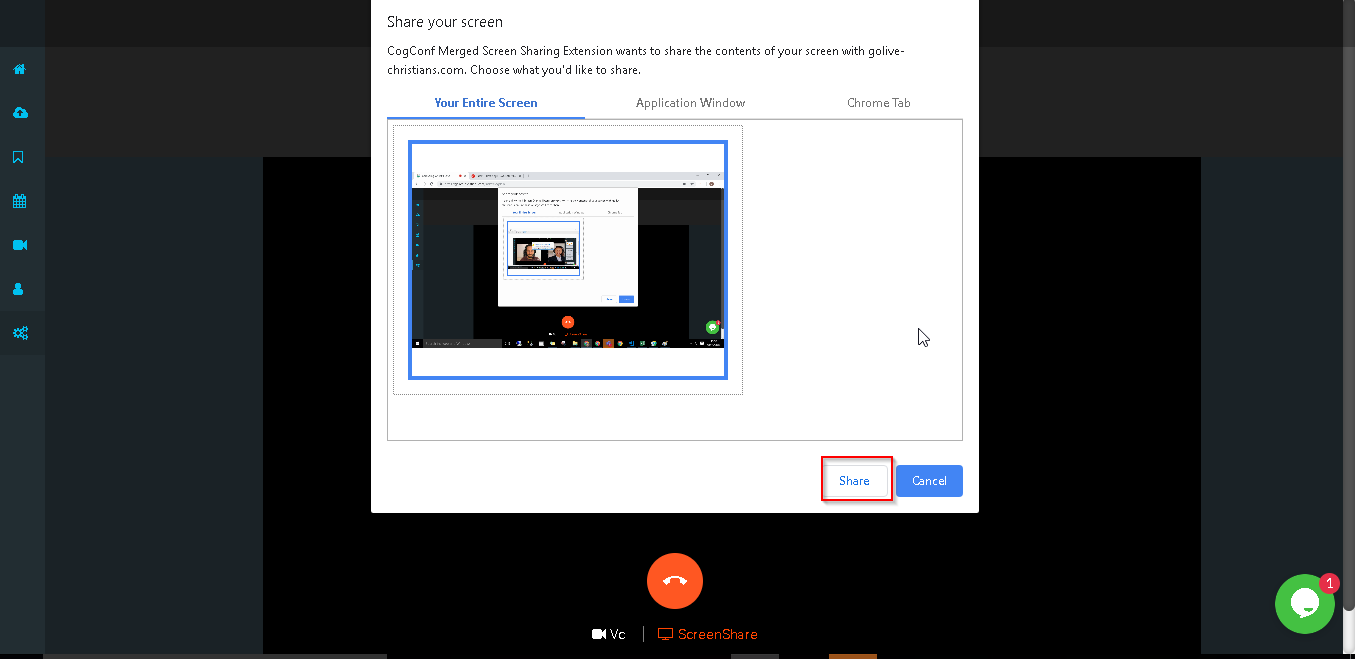
Screenshare display to other user
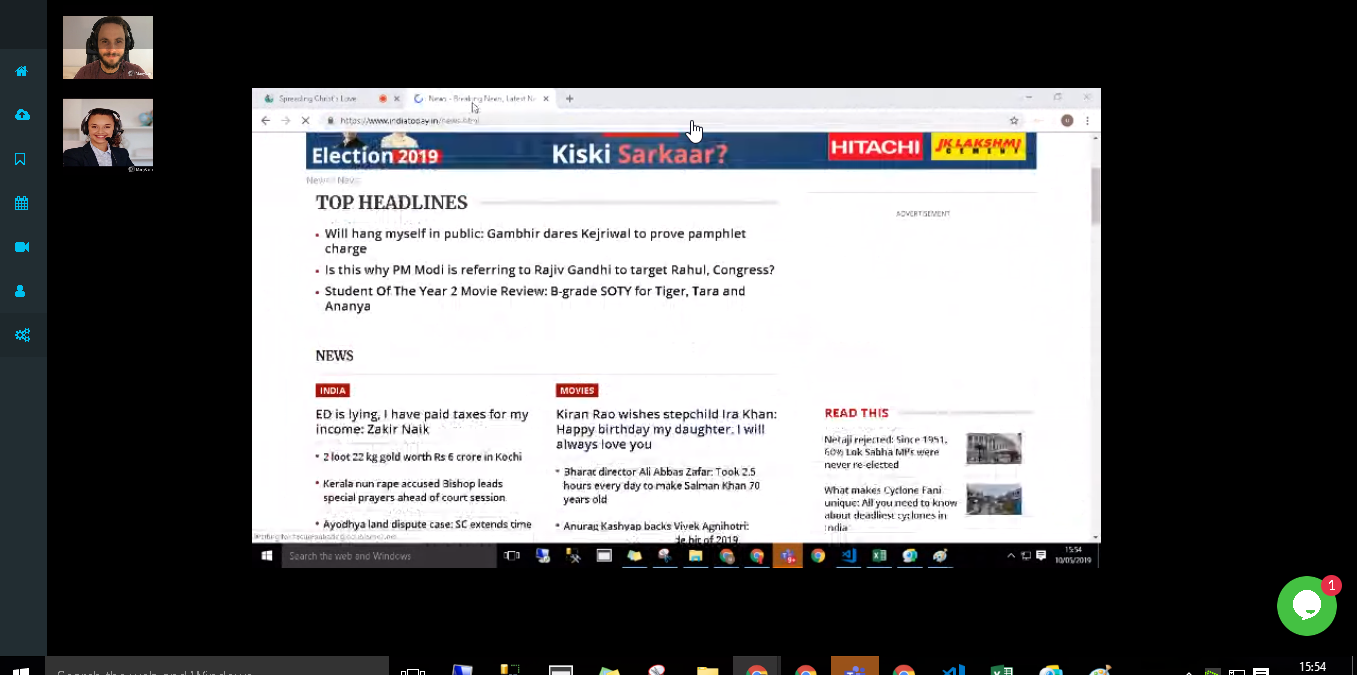
Click on Stop sharing screen button to stop screenshare
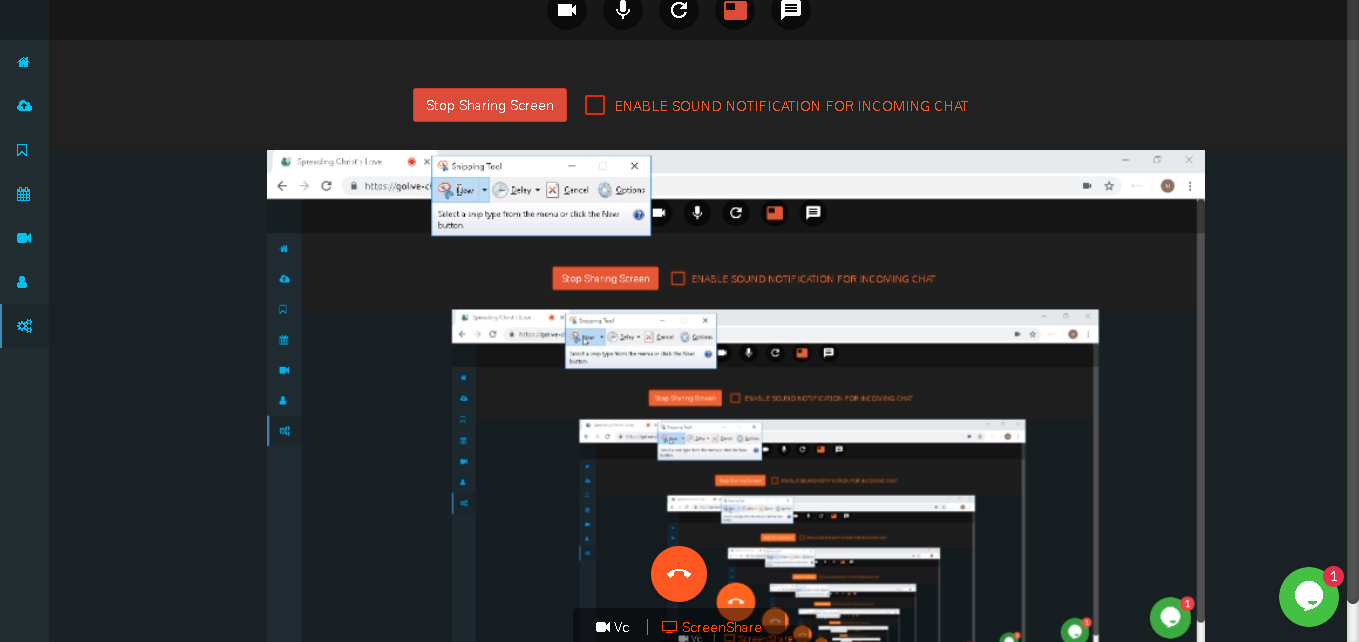
Click on disconnect button to disconnect call
One to One chat
user can send messages to each other also send attachement like images,documents,audio,video. Also notifications are display in bell icon on home page
Group Call
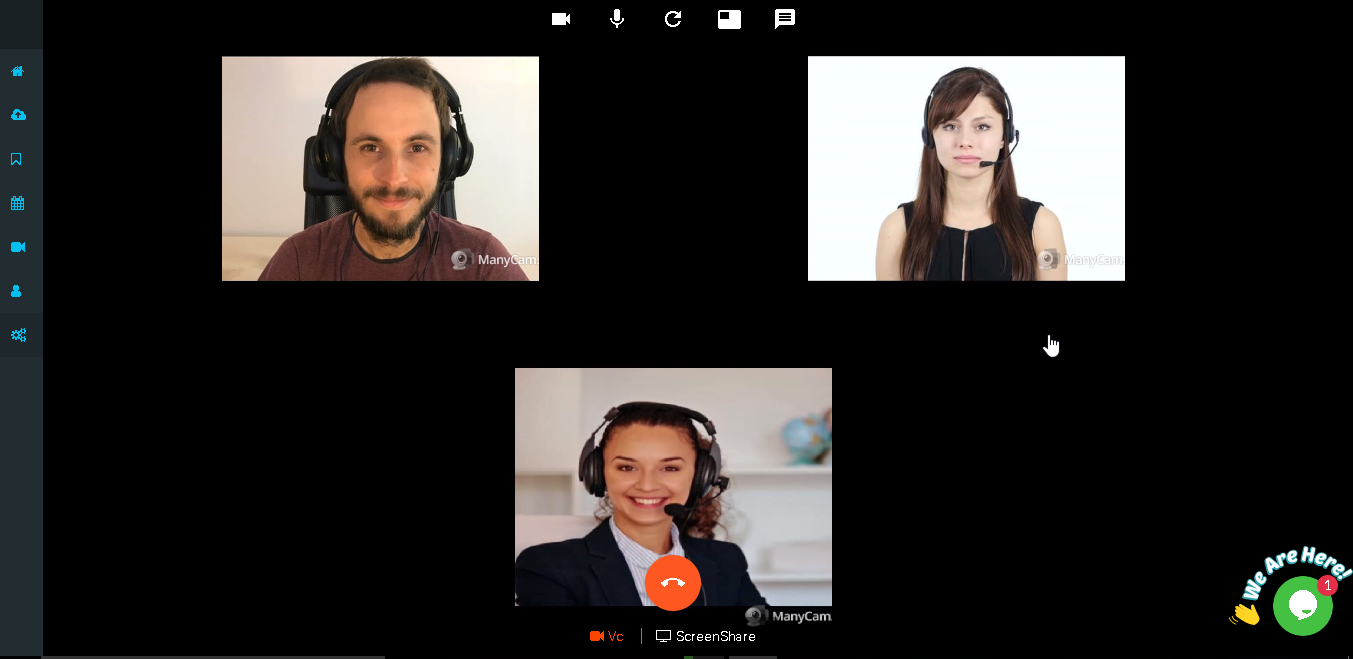
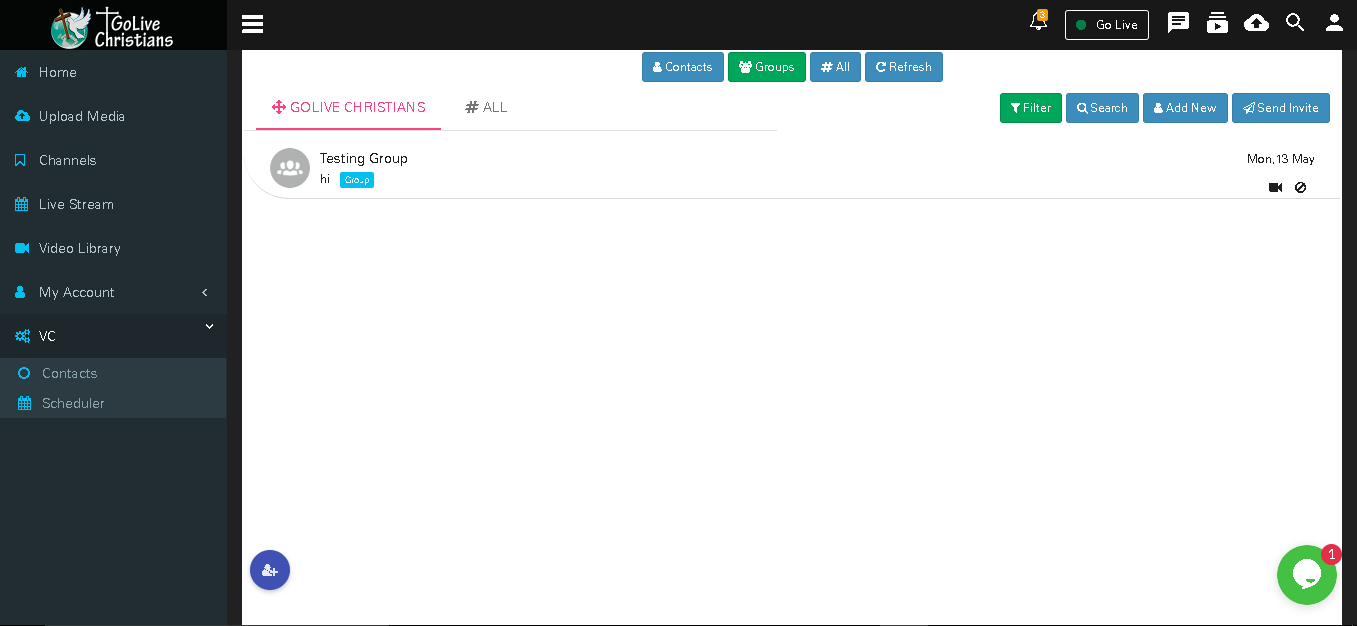
Click on Video call icon of created group
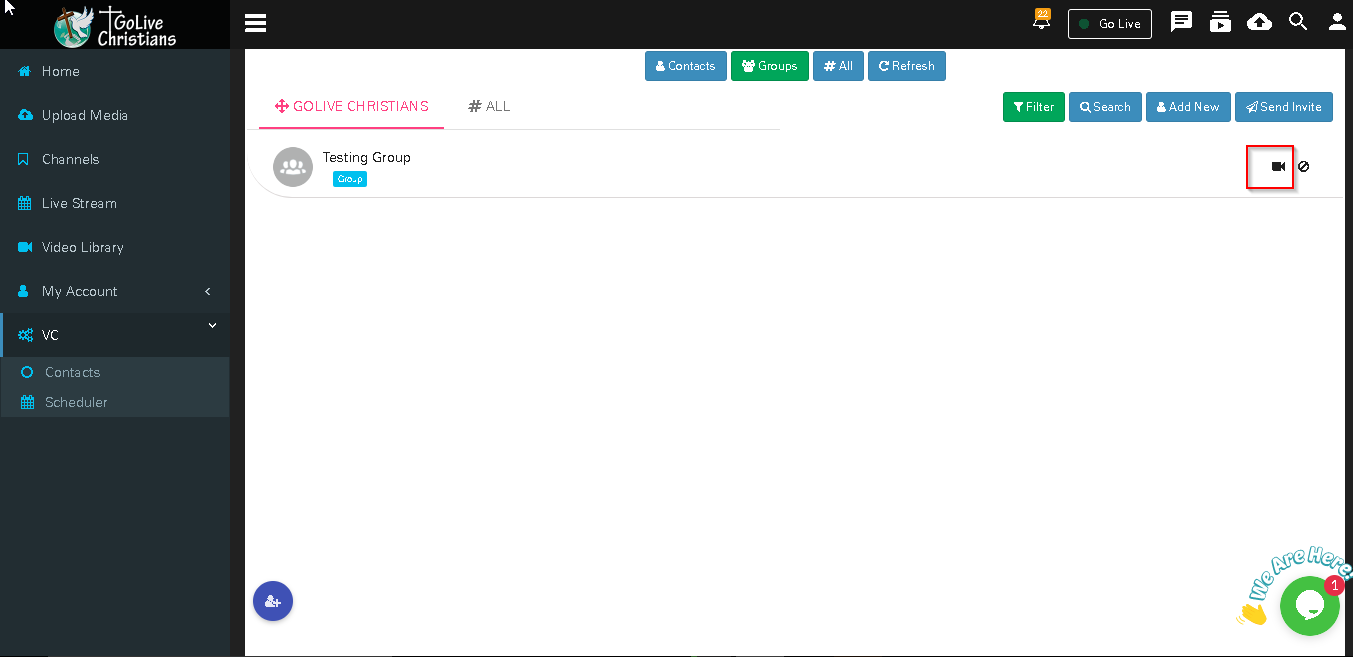
user who are in that group getting call after user received call display each other camera feed
Group Chat
Click on created group on which you want to chat
All members of group can send messages and attachements like audio/video/image/documents in group.
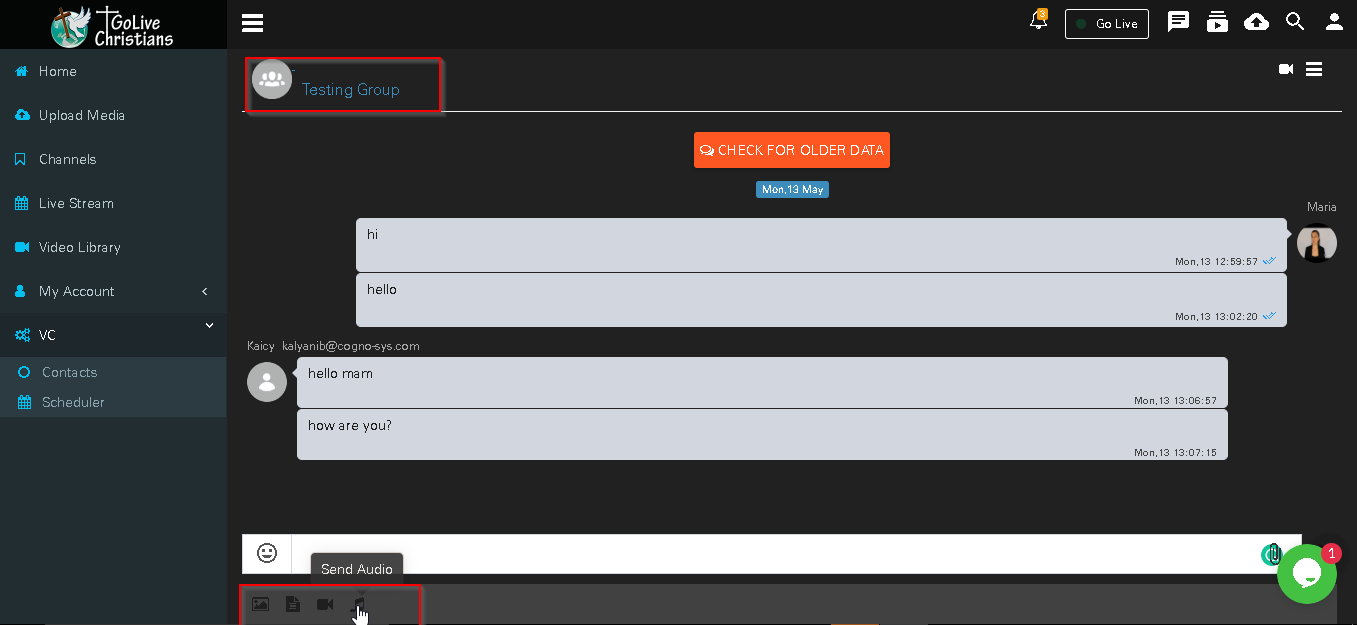
Admin User of group can chnage group icon,can add group member and group admin in group also chnage permission of group members by clicking on Group name.